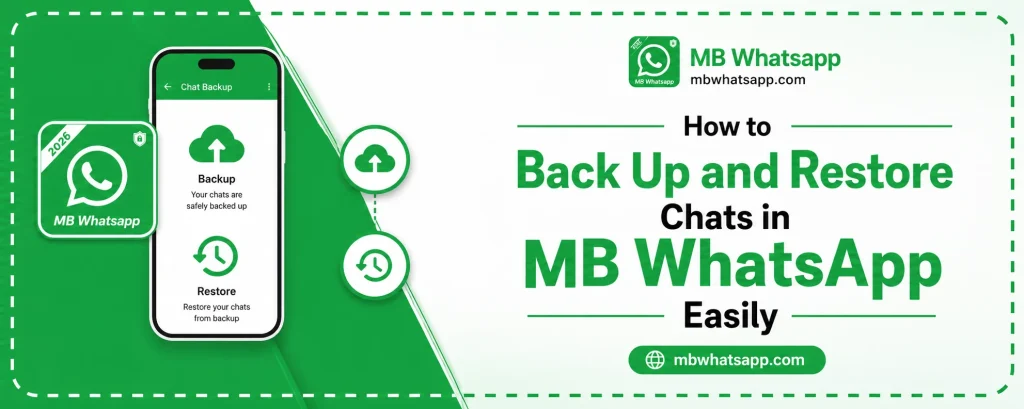
How to Back Up and Restore Chats in MB WhatsApp Easily
Losing important conversations is one of the most frustrating things that can happen to any messaging app user. MB WhatsApp makes it easy to back up and restore your chats, but many users do not know the full range of options available to them. This guide covers every backup and restore method available in MB WhatsApp APK in 2026.
Why Backing Up MB WhatsApp Chats Is Important
Your chats in MB WhatsApp may contain important information, cherished memories, business conversations, and shared media. Without a proper backup system, all of this can be lost in seconds due to an accidental uninstall, phone reset, or device failure. MB WhatsApp provides several backup options that help you protect your data with minimal effort.
Types of Backups in MB WhatsApp
Local Backup
A local backup saves your chat data directly to your phone’s internal storage. It is fast and does not require an internet connection. However, it is only as safe as your phone itself. If your device is lost, damaged, or reset, local backups may be lost as well.
Google Drive Backup
Google Drive backup stores your chat data in the cloud. This means your chats are safe even if you lose your phone or switch to a new device. However, note that MB WhatsApp’s Google Drive backup compatibility may vary depending on your version.
How to Create a Local Backup in MB WhatsApp
Follow these steps to create a manual local backup:
- Open MB WhatsApp on your device
- Tap the three-dot menu at the top right of the screen
- Go to Settings and then tap Chats
- Select Chat Backup from the menu
- Tap the Back Up Now button
- Wait for the backup to complete
The backup files are saved to your phone’s internal storage under the MBWhatsApp folder, inside a subfolder called Databases.
Setting Up Automatic Local Backups
You can schedule MB WhatsApp to create backups automatically so you never forget:
- Go to Settings, then Chats, then Chat Backup
- Under Backup Frequency, choose daily, weekly, or monthly
- Select whether to include videos in the backup
- Tap Save to apply your settings
| Backup Frequency | Best For |
|---|---|
| Daily | Heavy users with important conversations |
| Weekly | Moderate users with regular chats |
| Monthly | Light users or those with limited storage |
How to Back Up to Google Drive
To set up a Google Drive backup in MB WhatsApp:
- Go to Settings, Chats, then Chat Backup
- Tap on Back Up to Google Drive
- Select a Google account to use for the backup
- Choose a backup frequency
- Tap Back Up to start the first cloud backup
Make sure your Google Drive has enough free space before starting. A full backup including media can be quite large.
How to Restore Chats from a Local Backup
If you need to restore your chats after reinstalling MB WhatsApp or switching phones, follow these steps:
Restoring on the Same Phone
- Reinstall MB WhatsApp from mbwhatsapp.com
- During the setup process, verify your phone number
- MB WhatsApp will detect the existing backup and prompt you to restore
- Tap Restore and wait for the process to complete
- Your chats and media will be restored
Restoring on a New Phone
- Copy the MBWhatsApp folder from your old phone to your new phone using a USB cable or file transfer app
- Install MB WhatsApp from mbwhatsapp.com on the new phone
- Verify your phone number
- When prompted, tap Restore to load your chats
How to Restore from Google Drive
- Install MB WhatsApp from mbwhatsapp.com
- Enter and verify your phone number
- Sign in to the same Google account you used for the backup
- MB WhatsApp will detect the Drive backup and offer to restore it
- Tap Restore and wait for the download and restoration to complete
Tips for Keeping Your Backups Safe
- Store copies of your backup files on a computer or external drive
- Keep at least two recent backups so you have a fallback
- Do not delete the MBWhatsApp folder from your storage unless you are sure you no longer need it
- Verify backup completion by checking the backup date in Chat Backup settings
Frequently Asked Questions
1. Can I restore an official WhatsApp backup to MB WhatsApp? Yes. During setup, MB WhatsApp can detect and restore backups originally created by the official WhatsApp app.
2. Are my backup files encrypted? Local backups on MB WhatsApp are stored as database files. For extra security, avoid sharing your MBWhatsApp folder with others.
3. How much storage space do backups take? It depends on how many chats and media files you have. Text-only backups are small, but backups with photos and videos can be several gigabytes.
4. What happens if a backup restoration fails? Try restoring from an older backup file. You can find backup files in your MBWhatsApp > Databases folder and rename them to replace the most recent one.
5. Can I access MB WhatsApp backups from mbwhatsapp.com? mbwhatsapp.com provides information and the app itself, but backup files are stored on your device or Google Drive, not on the website.
Conclusion
Backing up and restoring chats in MB WhatsApp is a straightforward process when you know the steps. Whether you prefer local backups for speed or Google Drive backups for safety, MB WhatsApp covers both options well. Make it a habit to back up regularly, and you will never have to worry about losing your conversations. Always download the MB WhatsApp latest version from mbwhatsapp.com to ensure you have the best backup features available.