How to Fix MB WhatsApp Not Working After Update in 2026
One of the most frustrating experiences MB WhatsApp users face is when the app stops working after an update. This can happen due to various reasons ranging from incomplete installation to server issues. This guide will walk you through every possible fix to get MB WhatsApp working again in 2026.
Common Reasons MB WhatsApp Stops Working After an Update
Before jumping into solutions, it helps to understand why the problem occurs in the first place. Here are the most frequent causes:
- Incomplete or corrupted APK download
- Conflict with the previous version during installation
- Outdated Android version is incompatible with the new update
- Corrupted app cache or data
- Server-side issues on WhatsApp’s end
- Phone number verification failure after update
- Insufficient storage space during installation
Fix 1: Restart Your Phone
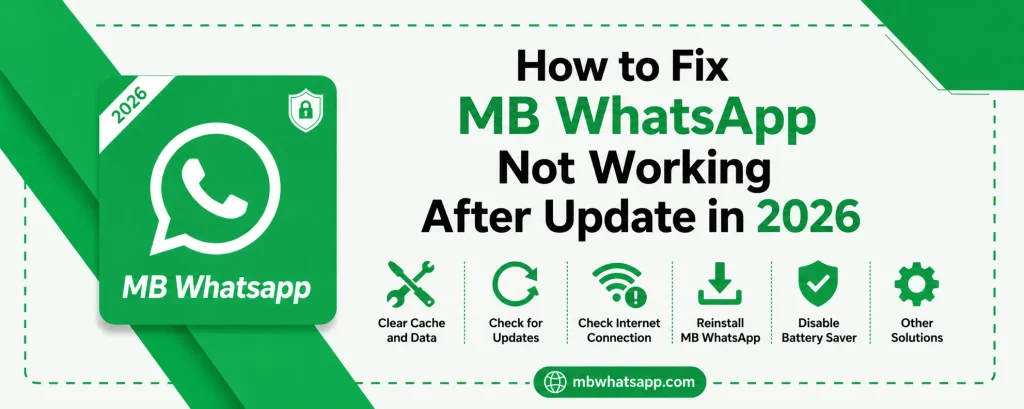
This sounds simple, but restarting your device clears temporary glitches that may prevent MB WhatsApp from launching properly after an update. Hold down your power button, tap Restart, and then try opening MB WhatsApp again.
Fix 2: Clear Cache and Data
Accumulated cache from the previous version can conflict with the new update.
- Go to your phone’s Settings
- Open Apps or Application Manager
- Find MB WhatsApp in the list
- Tap Storage, then Clear Cache
- If that does not work, tap Clear Data as well
- Reopen MB WhatsApp and verify your number if prompted
Note: Clearing data will remove locally stored settings but not your chat backups.
Fix 3: Reinstall MB WhatsApp
If clearing cache does not help, a clean reinstall is often the best solution.
- Back up your chats first via Settings > Chats > Chat Backup
- Uninstall MB WhatsApp from your phone
- Download the latest version fresh from mbwhatsapp.com
- Install it and restore your backup during setup
Fix 4: Check Your Internet Connection
MB WhatsApp requires an active internet connection to complete its post-update verification. Make sure you are connected to Wi-Fi or mobile data before launching the app after an update.
| Connection Test | Steps |
|---|---|
| Wi-Fi Check | Open a browser and load any website |
| Mobile Data Check | Disable Wi-Fi and try loading a page |
| DNS Issue | Try switching to Google DNS (8.8.8.8) |
Fix 5: Free Up Storage Space
If your phone is low on storage, MB WhatsApp may fail to initialize properly.
- Delete unnecessary files, apps, or media
- Clear cache of other apps
- Move photos and videos to a computer or cloud storage
- Ensure at least 500 MB of free storage is available
Fix 6: Re-verify Your Phone Number
Sometimes after an update, MB WhatsApp requires you to verify your phone number again. If you see a verification screen, enter your number, request the OTP, and complete the verification. If SMS verification fails, use the Call Me option.
Fix 7: Check for Android Compatibility Issues
Newer MB WhatsApp versions may require a higher Android version than what is installed on your phone. Go to your phone’s Settings, About Phone, and check your Android version. If it is below Android 5.0, you may need to use an older MB WhatsApp version. Older versions are available at mbwhatsapp.com.
Fix 8: Disable Battery Optimization for MB WhatsApp
Aggressive battery optimization on some phones can prevent MB WhatsApp from running in the background after an update.
- Go to Settings, Battery, then Battery Optimization
- Find MB WhatsApp in the list
- Set it to Not Optimized or Unrestricted
Fix 9: Check if WhatsApp Servers Are Down
Occasionally, the issue is not with your app but with WhatsApp’s servers. If WhatsApp’s backend is experiencing downtime, MB WhatsApp will also be affected since it uses the same infrastructure. Wait a few hours and try again.
Frequently Asked Questions
1. Why does MB WhatsApp keep crashing after the latest update? This is usually caused by a corrupted installation or cache conflict. Try clearing the cache first, and if that fails, reinstall from mbwhatsapp.com.
2. My chats disappeared after the update. How do I get them back? Go to Settings, Chats, Chat Backup, and tap Restore. If you have a backup, your chats will be recovered.
3. MB WhatsApp is stuck on the loading screen after update. What should I do? Clear the app cache and data, then restart your phone. If the issue persists, do a clean reinstall.
4. Can an outdated Android version cause MB WhatsApp to stop working? Yes. Check the minimum Android requirement for the version you downloaded from mbwhatsapp.com.
5. Is there a way to prevent this problem during future updates? Always back up your chats before updating, download only from mbwhatsapp.com, and ensure sufficient storage space before starting the installation.
Conclusion
MB WhatsApp v2.8.1 stopping after an update is a solvable problem in almost every case. By working through the fixes in this guide systematically, you can get your app back up and running quickly. Always download updates from mbwhatsapp.com to ensure you are getting the most stable version available, and keep regular backups to protect your data through any technical issues.