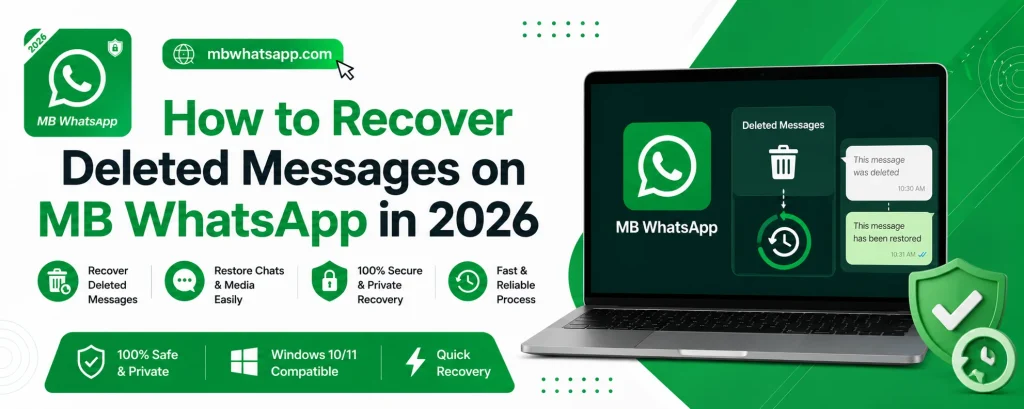
How to Recover Deleted Messages on MB WhatsApp in 2026
Accidentally deleting an important message can be stressful. Whether you deleted it yourself or someone sent you a message and then deleted it for everyone, MB WhatsApp APK offers several ways to recover those lost conversations. This guide covers every recovery method available in 2026.
How MB WhatsApp Handles Deleted Messages
MB WhatsApp has a unique feature called Anti-Delete that automatically saves copies of messages before they are deleted. This is separate from the standard backup and restore system. When enabled, even if a sender deletes a message using the Delete for Everyone option, you can still access the original content.
Method 1: Enable and Use Anti-Delete Messages
If you have the Anti-Delete feature enabled, recovering deleted messages is instant.
How to Enable Anti-Delete
- Open MB WhatsApp and go to Settings
- Tap on Privacy or MB WhatsApp Settings
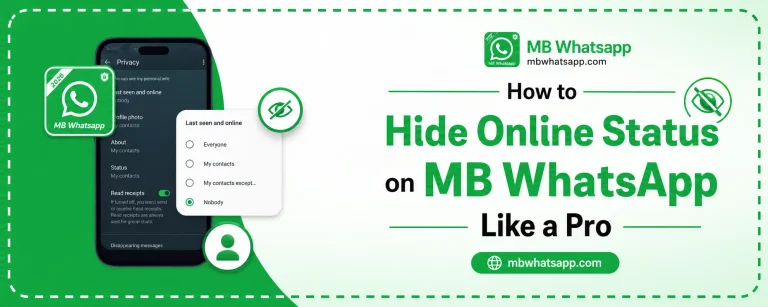
- Find Anti-Delete Messages
- Toggle it on
Viewing Recovered Messages
Once enabled, deleted messages are displayed in the chat with a special marker showing they were deleted. Tap on the message to see the original content.
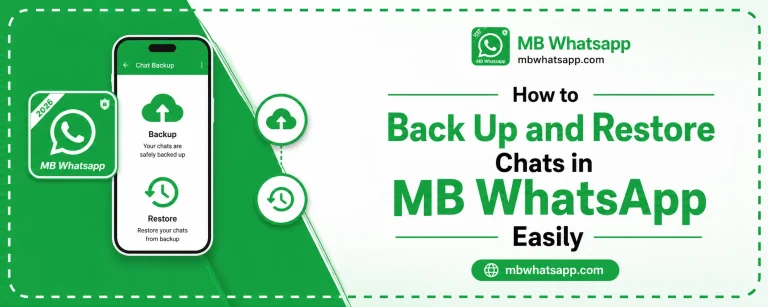
Method 2: Recover from Local Backup
If a message was deleted and you did not have Anti-Delete enabled, you can try recovering it from a backup.
Steps to Restore from Local Backup
- Go to your phone’s internal storage and navigate to MBWhatsApp > Databases
- You will see files named msgstore.db.crypt12 along with dated versions
- The dated files are older backups
To restore from a specific backup:
- Back up your current chats first (to avoid losing recent messages)
- Rename the most recent backup file to something like msgstore_current.db.crypt12
- Rename the older backup file you want to restore to msgstore.db.crypt12
- Reinstall MB WhatsApp from mbwhatsapp.com or clear its data
- During setup, restore from the backup when prompted
| Backup File Name | Description |
|---|---|
| msgstore.db.crypt12 | Most recent active backup |
| msgstore-YYYY-MM-DD.1.db.crypt12 | Dated backup from specific day |
| msgstore-YYYY-MM-DD.2.db.crypt12 | Second backup from same day |
Method 3: Check Google Drive Backup
If you had Google Drive backup configured before the messages were deleted:
- The backup captures a snapshot of your chats at the time of backup
- If the deleted message existed at the time of the last backup, it may be recoverable
To restore from Google Drive:
- Uninstall MB WhatsApp
- Reinstall from mbwhatsapp.com
- During setup, sign in with the same Google account
- Select Restore from Google Drive when prompted
- Wait for the restoration to complete
Note: Google Drive backup in MB WhatsApp may have limitations compared to official WhatsApp’s Drive backup due to compatibility differences.
Method 4: Check Your Notification History
Android devices keep a log of notifications received. If you received a message notification before it was deleted, the text may still be visible in your notification history.
- On most Android phones, long press the notification panel
- Tap Notification History or Notification Log
- Scroll through recent notifications to find the deleted message content
This method only shows a preview and may not capture the full message if it was long.
Method 5: Ask the Sender
This is the simplest solution. If someone deleted a message they sent you and you want to know what it said, simply ask them to resend it. Many people delete messages by accident and are happy to share the content again.
Tips to Avoid Losing Messages in the Future
- Enable Anti-Delete Messages as a precaution
- Set daily automatic backups in Settings > Chats > Chat Backup
- Back up to both local storage and Google Drive for double protection
- Do not delete the MBWhatsApp folder from your storage
Frequently Asked Questions
1. Can I recover messages deleted by someone else using Delete for Everyone? Yes, if Anti-Delete is enabled in MB WhatsApp. The message is saved before the deletion request is processed.
2. How far back can I recover messages from local backups? MB WhatsApp keeps multiple dated backup files. You can go back as far as the oldest backup file stored on your device.
3. Does the notification history method work for media messages? No. Notification history only shows text previews. Media files like photos and videos cannot be recovered this way.
4. Will restoring an old backup delete my recent messages? Yes. Restoring an older backup replaces your current message database. Back up your current chats before restoring an older one.
5. Where can I download MB WhatsApp with Anti-Delete support? Visit mbwhatsapp.com and download the latest version, which includes the Anti-Delete feature.
Conclusion
Recovering deleted messages in MB WhatsApp is very achievable thanks to the Anti-Delete feature and the robust backup system the app provides. Enable these features proactively so that you are always protected against accidental or intentional message deletion. Download the latest version of MB WhatsApp from mbwhatsapp.com to access all the recovery tools described in this guide.