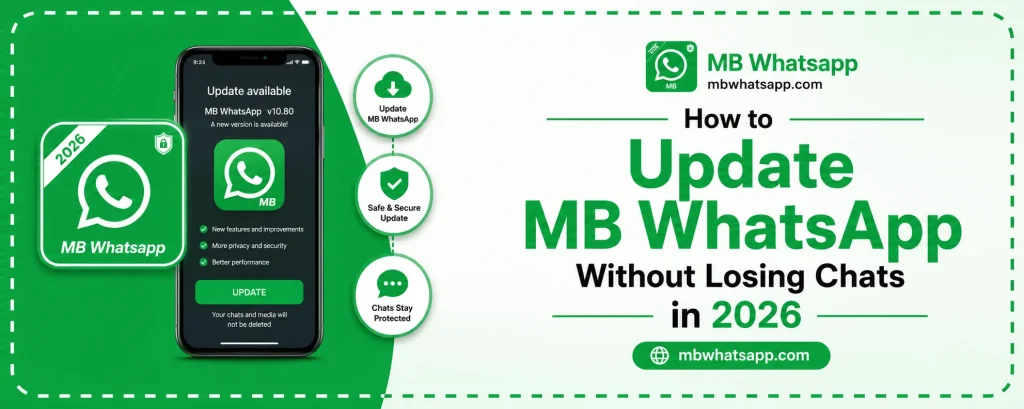
How to Update MB WhatsApp Without Losing Chats in 2026
Keeping MBWhatsApp up to date is important for accessing new features, security improvements, and bug fixes. However, many users are afraid to update because they worry about losing their chat history. This guide will show you exactly how to update MB WhatsApp in 2026 without losing a single conversation.
Why Updating MB WhatsApp Matters
Each new update released on mbwhatsapp.com brings meaningful improvements. Updates may include new privacy options, theme enhancements, fixes for bugs that cause crashes, and compatibility updates to keep the app running smoothly with the latest Android versions. Skipping updates for too long can lead to connectivity issues and reduced functionality.
Understanding How MB WhatsApp Stores Chats
Before you update, it is helpful to understand where your chats are stored. MB WhatsApp saves your messages and media in a dedicated folder on your phone’s internal storage. This folder is separate from the app itself, which means uninstalling or updating the app does not automatically delete your chats as long as you do not wipe this folder.
The default backup folder is usually found at: Internal Storage > MBWhatsApp > Databases
Step 1: Back Up Your Chats Before Updating
Even though your chats are stored separately from the app, it is always best practice to create a manual backup before any update.
How to Create a Local Backup
- Open MB WhatsApp on your phone
- Go to the three-dot menu in the top right corner
- Tap Settings, then Chats, then Chat Backup
- Tap Back Up Now and wait for it to complete
How to Back Up to Google Drive
In the same Chat Backup section, you can connect your Google account and set up automatic Google Drive backups. This gives you an extra layer of protection in case something goes wrong during the update.
| Backup Type | Pros | Cons |
|---|---|---|
| Local Backup | Fast, no internet needed | Lost if phone is reset |
| Google Drive Backup | Safe even if phone is lost | Requires internet and storage |
Step 2: Check for the Latest Version
Visit mbwhatsapp.com to find the latest available version. Compare the version number listed on the site with the version installed on your phone. You can check your current version by going to MB WhatsApp Settings and scrolling to the bottom where the version number is displayed.
Step 3: Download the New APK
From mbwhatsapp.com, download the latest MB WhatsApp APK file. Make sure your download is complete and the file is not corrupted before proceeding. A good sign is that the file size matches what is listed on the website.
Step 4: Install the Update Over the Existing App
This is the critical step. You do not need to uninstall the old version before installing the update. Installing over the existing version preserves all your chats and settings.
Installation Steps
- Open your downloads folder and tap the new APK file
- Your phone will show a prompt asking you to update the existing installation
- Tap Update or Install and wait for it to complete
- Open MB WhatsApp and verify that all your chats are still there
What to Do If Chats Disappear After Updating
In rare cases, chats may not appear immediately after an update. Do not panic. Here is what to do:
- Open MB WhatsApp and tap Restore if the restore prompt appears
- If no prompt appears, go to Settings, then Chats, then Chat Backup, and tap Restore
- Select the most recent backup and wait for restoration to complete
How to Avoid Losing Chats in the Future
- Always back up before any update
- Enable automatic backups on a daily schedule
- Do not delete the MBWhatsApp folder from your storage
- Keep at least two recent backup files saved
Frequently Asked Questions
1. Do I need to uninstall MB WhatsApp before updating? No. You should install the new version over the existing one. Uninstalling first will risk losing local backups.
2. How do I know when a new update is available? Check mbwhatsapp.com regularly for update announcements, or enable in-app update notifications if available in your version.
3. Can I roll back to an older version if the update causes problems? Yes. Older versions are available on mbwhatsapp.com. Install the older APK over the problematic version, but make sure you have a backup first.
4. Will my themes and settings be saved after updating? In most cases, yes. Settings and themes are stored in the app’s data folder and are preserved during an over-the-top update.
5. What happens if I accidentally uninstall MB WhatsApp before backing up? If you have a Google Drive backup, you can restore from there. Local backups may still exist in your phone’s file manager under the MBWhatsApp folder if the storage was not wiped.
Conclusion
Updating WhatsApp MB without losing your chats is entirely possible when you follow the right process. Always create a backup before you start, download the latest APK from mbwhatsapp.com, and install it over your existing app without uninstalling first. This simple routine will keep your MB WhatsApp running at its best while keeping every conversation safe and intact.