MB WhatsApp Old Versions: Download and Installation Guide
Sometimes the latest version of MB WhatsApp is not the right version for you. Whether the newest update introduced a bug, is incompatible with your Android version, or removed a feature you rely on, downloading an older version may be the solution. This guide explains how to find, download, and install old versions of MB WhatsApp.
Why You Might Need an Old Version
There are several legitimate reasons to use an older MB WhatsApp version:
- The latest update is causing crashes on your device
- A feature you rely on was changed or removed in a recent update
- Your Android version is too old for the latest MB WhatsApp
- You want to test or compare features between versions
- The latest update has a known bug being fixed in the next release
Where to Find Old MB WhatsApp Versions
mbwhatsapp.com is the primary source for MB WhatsApp downloads and may maintain an archive of past versions. When looking for older versions:
- Check the downloads or changelog section of mbwhatsapp.com
- Look for an archive or older versions link on the site
- Contact the site’s support or community channels for specific version requests
Always prioritize official sources when downloading older versions to ensure the APK has not been tampered with.
How to Install an Old Version of MB WhatsApp
Installing an older version requires some care because you need to preserve your current chats while downgrading.
Step 1: Back Up Your Chats
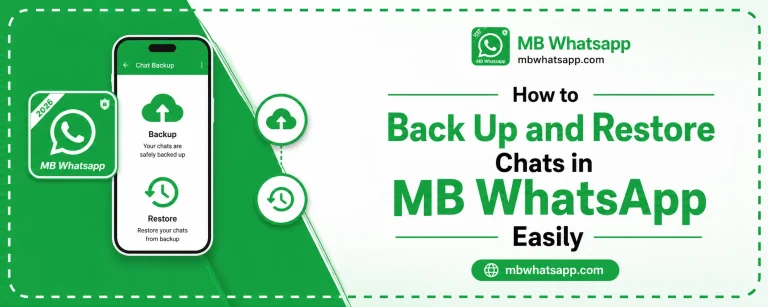
Before doing anything else, create a full backup of your current chats.
- Go to MB WhatsApp Settings > Chats > Chat Backup
- Tap Back Up Now
- Wait for the backup to complete
Step 2: Download the Older APK
Find and download the specific older version APK you need from a trusted source. Verify the file size and version number match what is listed to ensure integrity.
Step 3: Determine If You Can Install Over the Current Version
In most cases, you cannot install an older APK over a newer one on Android. Android’s package installer prevents this to avoid downgrade security issues.
Your options are:
- Install over the current version if your phone allows it (some custom ROMs permit this)
- Uninstall the current version first, then install the old one
Step 4: Uninstall the Current Version
If necessary, uninstall MB WhatsApp. Your backup files remain in the MBWhatsApp folder in internal storage.
Step 5: Install the Old APK
Locate the downloaded APK and tap it to install. Follow the on-screen prompts.
Step 6: Restore Your Backup
After installation, open the older version of MB WhatsApp. Verify your number when prompted. When asked about backup, tap Restore to load your backed-up chats.
| Step | Action |
|---|---|
| 1 | Back up chats |
| 2 | Download old APK from mbwhatsapp.com |
| 3 | Uninstall current version if needed |
| 4 | Install old APK |
| 5 | Restore backup |
Risks of Using Old MB WhatsApp Versions
Using an older version comes with trade-offs:
- The old base version may be incompatible with current WhatsApp servers, causing connectivity issues
- Missing anti-ban updates increases suspension risk
- Known security vulnerabilities in old versions remain unpatched
- Some features may not work correctly with the current server infrastructure
When to Use Old Versions vs Waiting for a Fix
Use an old version if the current update is severely broken and you need messaging capability immediately. Otherwise, waiting for the next update from mbwhatsapp.com is usually the better option. The development team addresses known bugs quickly, and a new release often follows within days.
Frequently Asked Questions
1. Is it safe to use an old version of MB WhatsApp long term? Not recommended for extended periods. Older versions may lose connectivity as WhatsApp server protocols update, and anti-ban protections will not be current.
2. Will my chats from the newer version work in an older version? Backup files created by a newer version may not be compatible with an older one. Your most recent backup prior to the upgrade should work.
3. Can I go back to an old version without losing chats? Yes, as long as you back up before uninstalling and restore after installing the older version.
4. Where is the safest place to find old MB WhatsApp APKs? mbwhatsapp.com is the recommended source. Be cautious of unofficial third-party archives.
5. How long does it usually take for a new update to fix bugs introduced in the previous version? Usually a few days to a couple of weeks, depending on the severity of the issue. Check mbwhatsapp.com for update announcements.
Conclusion
Downloading and using an older version of MB WhatsApp is sometimes the right short-term solution when a new update causes problems. Follow the steps in this guide to safely downgrade while protecting your chat history. However, always aim to return to the latest version available on mbwhatsapp.com as soon as a stable update is released to ensure the best security, performance, and compatibility.